Project navigation
You will be redirected to the project proposal form where you see several tabs that need to be fill out. To access a particular project tab, click the appropriate tab in the upper part of the page.
Figure 11: Project navigation

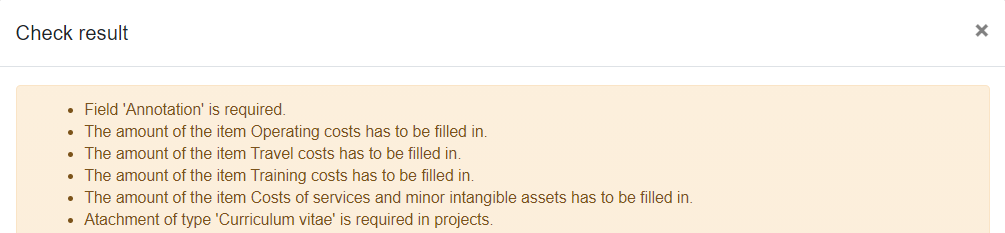
To check your proposal for completeness, click  icon. The system will generate a pop-up window with a list of items that need to be filled out before you will be allowed to submit your proposal.
Figure 12: Check results pop-up window
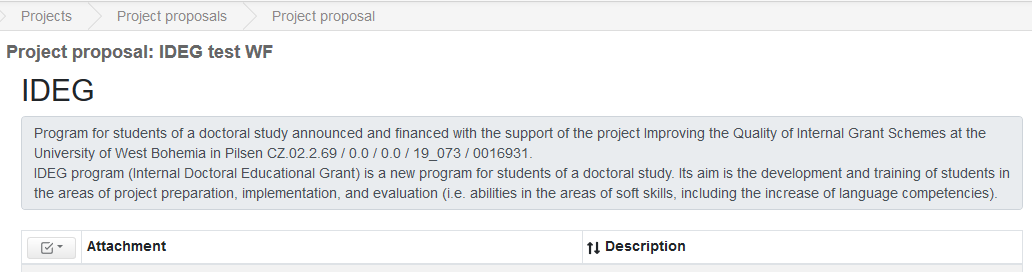
To get back to “Agenda call” page, click  icon in the upper right corner.
Figure 13: Project proposals – Agenda call page
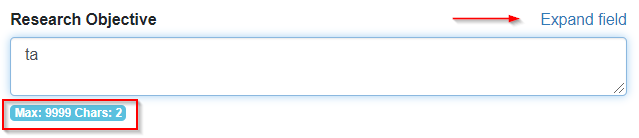
When you type in the text field, you can expand it by clicking “Expand field”. You can also clearly see the maximum number of characters allowed as well the number of characters you´ve already typed in.
Figure 14: Text window
Make sure to save your work frequently by clicking  icon in the bottom right corner of the page.
Use  arrow symbol in the bottom right corner of the page to exit your proposal. Please note that if you click it by accident, all your unsaved data will be lost and you will get to “Project proposals” page.
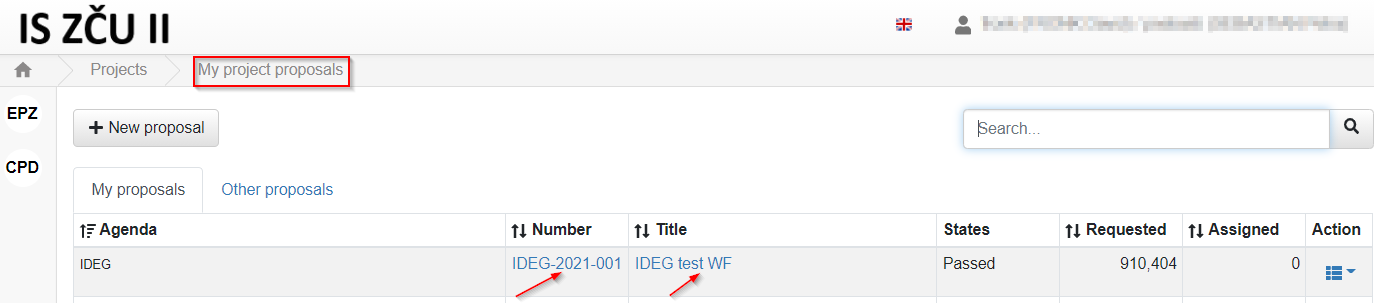
To get back to your project, click either project number or project name in “My proposals” list:
Figure 15: Projects – „My project proposals“ list