
Attachments
Completion requirements
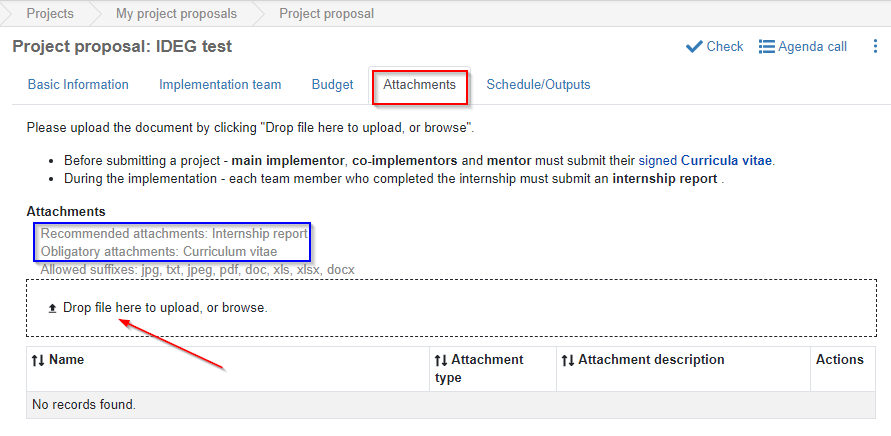
In the tab “Attachments” you need to upload signed Curricula vitae of all team members (including yourself and your mentor). To do this, click “Drop file here to upload, or browse” link.
Figure 59: Creating a new project – Attachments tab
Next you need to locate a document on your computer, select the document and pick the “Attachment type” from the drop-down. You can add a note in the “Attachment description” box), hit “OK” button in the upload window and then hit save  icon in the bottom right corner of the page.
Figure 60: Attachments tab – uploading form
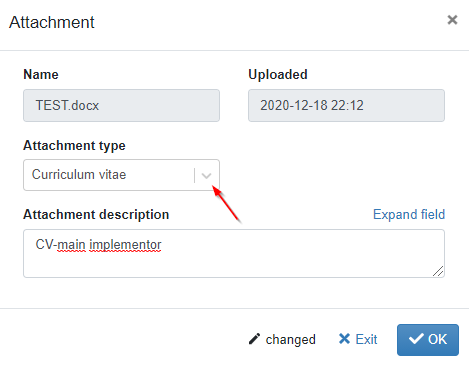
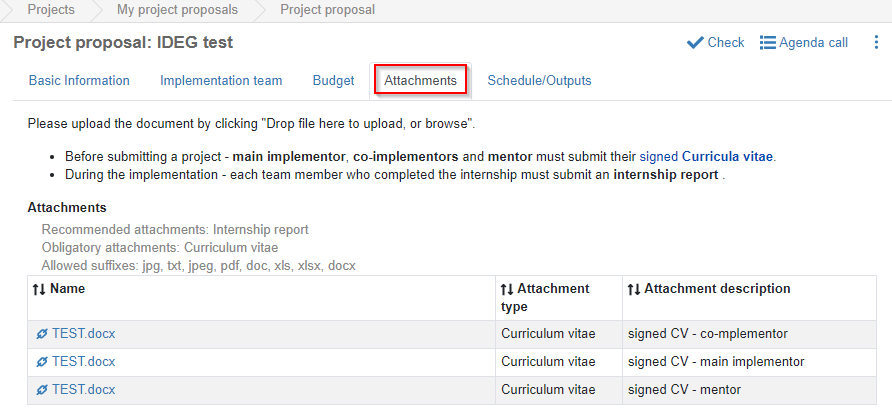
Figure 61: Attachments tab with uploaded attachments
Last modified: Thursday, 7 January 2021, 3:13 PM