
Implementation team
1. Main/Individual implementor
In this tab, you need to add all members of your team (including a mentor) as well as all financial roles for your project.
You will notice that you will be already prefilled in the “Main implementor/Individual implementor” role and your “Consent to participate” will display as “Granted”. You also have assigned the working capacity of normal working hours of a full-time position 0.5.
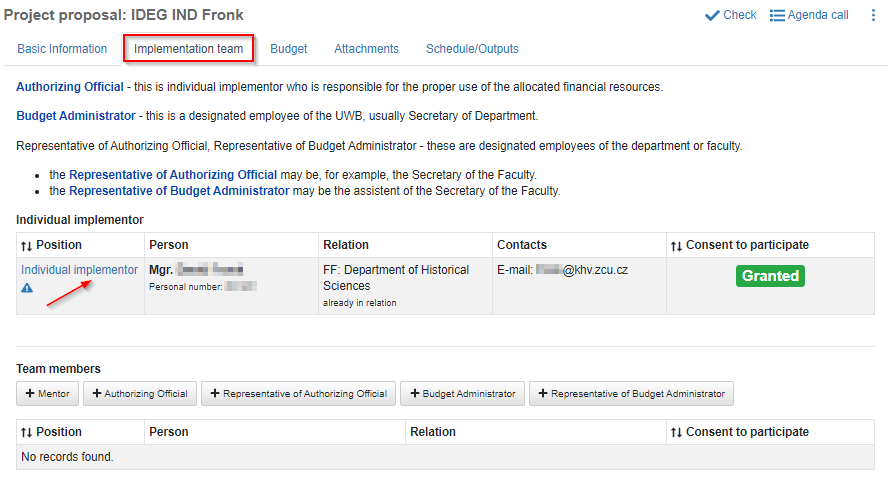
This is how this tab looks in an individual project:
Figure 18: Creating a new project – Implementation team tab – Individual project
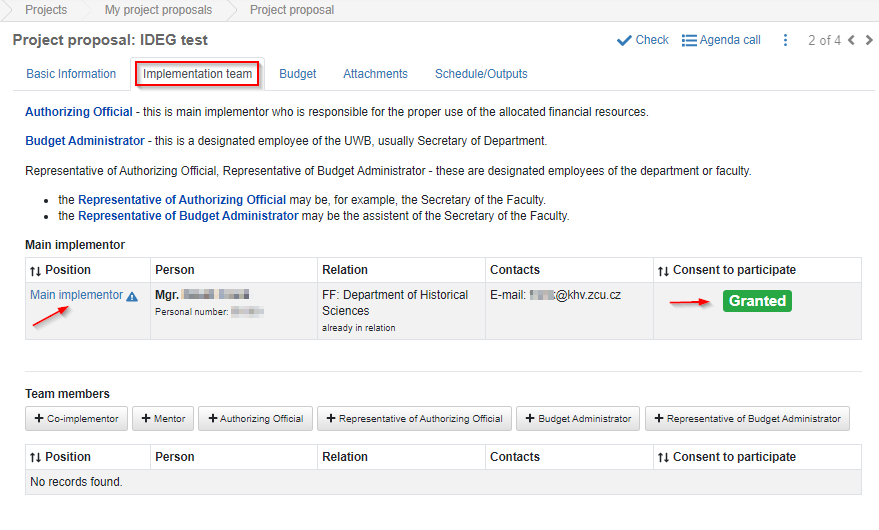
This is how this tab looks in a team project (the remainder of this section will be illustrated using a team setting as the process is same for both options):
Figure 19: Creating a new project – Implementation team tab – Team project
However, there is  icon next to your position indicating that there are some mandatory fields that yet need to be filled in. You will see those when you hover over the icon with your mouse.
Figure 20: Creating a new project – Implementation team – Main implementor
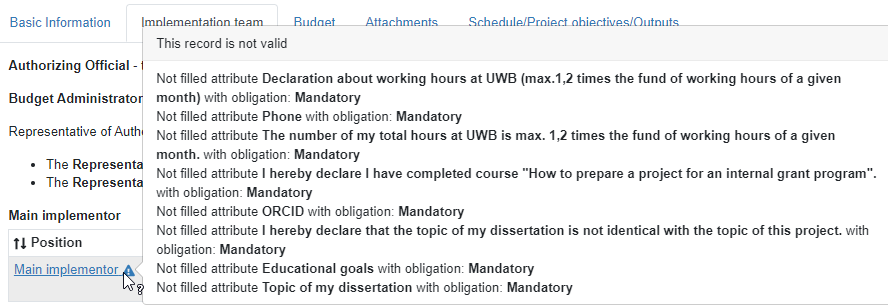
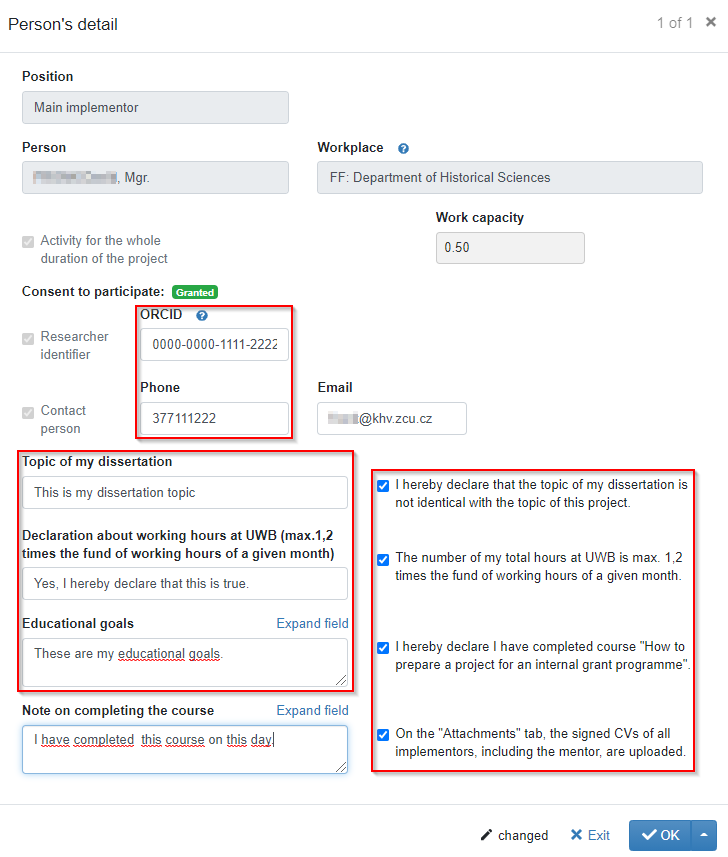
Click “Main implementor” link to open the form. Here is a list of all mandatory fields that must be completed for this position:
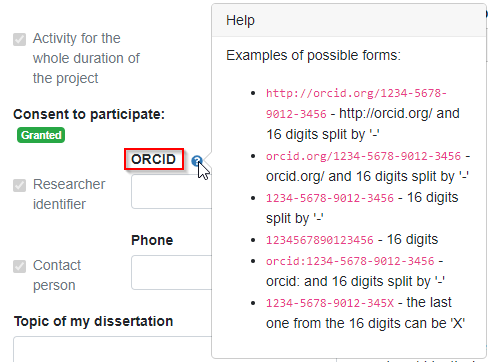
· ORCID: type in your ORCID ID (Open Researcher and Contributor Identifier). You can click help  icon to view acceptable format that you can put in.
Figure 21: Main implementor form - ORCID help text
· Phone
· Topic of my dissertation – type in the topic of your dissertation and check the box where you are declaring that this topic is not identical with the topic of your project.
· Declaration about total working hours at UWB – type in the declaration that your total working hours at UWB is max. 1,2 times the fund of working hours of a given month. Also make sure to check an appropriate check box as a confirmation.
· Educational goal – describe your educational goals, e.g. that you would like to improve your language skills.
· Declaration about course completion – it is mandatory that all members of your team (including yourself) complete the course “How to prepare a project for an internal grant programme IDEG” before the project proposal is submitted. Put a check mark in the appropriate check box if this is true. You can also add a note in the “Note on completing the course” text box (this is not mandatory).
· Confirmation about attached CVs – it is necessary to upload signed Curricula vitae for all team members (including the mentor) before the proposal is submitted. This can be done via ATTACHMENTS tab.
Figure 22: Completed „Main implementor form“
Once the form is completed, click  and hit
 save icon in the bottom right corner of the page. You can see that there is no exclamation next to your position now.
Figure 23: Implementation team – completed „Main implementor“ record
