
Implementation team
2. Co-implementor
When creating a team project, you need to add at least 1 team member as a co-implementor and a maximum of 2 co-implementors. The co-implementor can have working capacity 0.1 or 0.2 of normal working hours of a full-time position.
To add a co-implementor, click the  tab.
Figure 24: Implementation team – Co-implementor

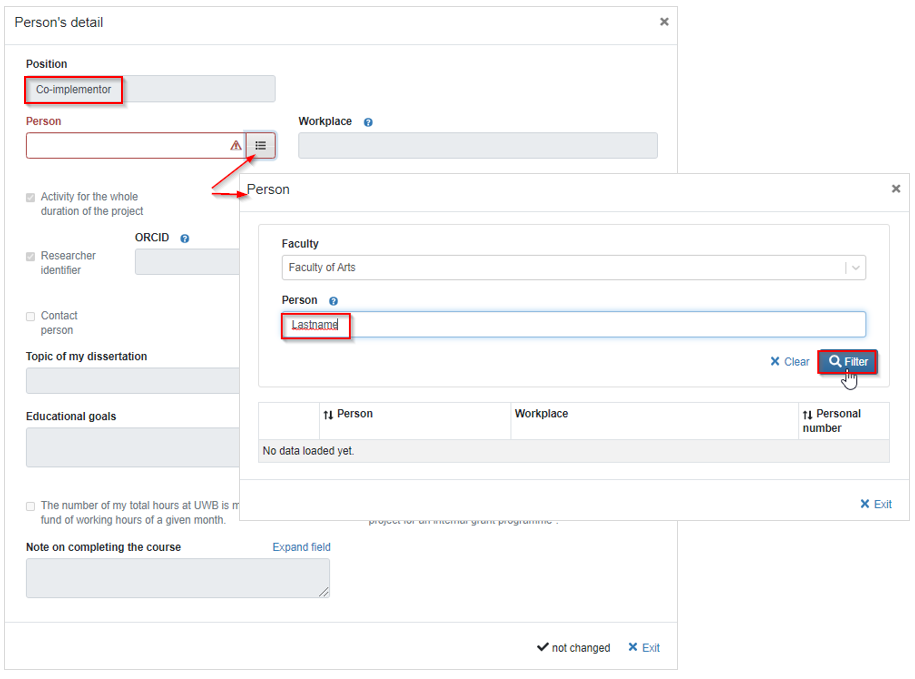
The form will be displayed. First you need to pick a person. Open the code list by hitting  on the right side of a “Person” dropdown. Next you can either type in last name (it needs to include diacritics) and hit “Filter” or click “Filter” right away. If you need to find a person from a different faculty, you need to select it from the “Faculty” drop-down and then do your search.
Figure 25: Implementation team – Co-implementor form
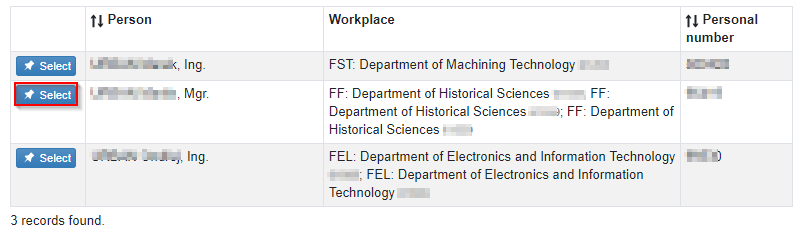
Pick your person from returned list by clicking  icon.
Figure 26: Implementation team – Co-implementor- person code list
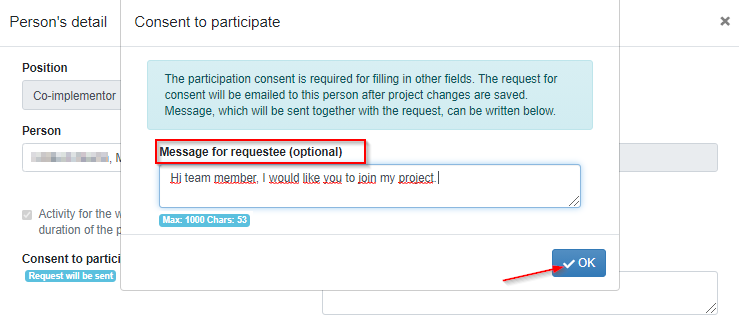
As each member of your team needs to agree with the participation, an email request will be sent to him/her once you save the person record. You can also include a personal note if you wish.
Figure 27: Implementation team – Co-implementor form – Consent for participation
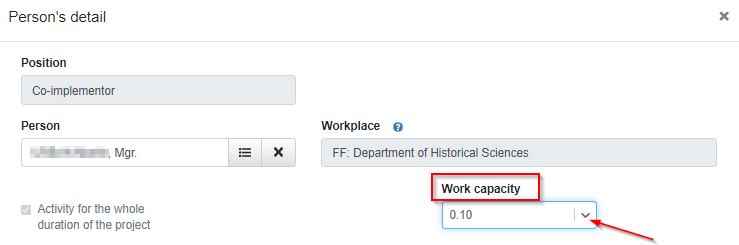
Next you must assign 0,1 or 0,2 work capacity from the drop-down. The work capacity you select is then tied to a calculation of your overall BUDGET.
Figure 28: Implementation team - Co-implementor form – assigning work capacity
Once you hit OK, you will see an indication that the request for participation approval will be sent.
Figure 29: Implementation team – Co-implementor record

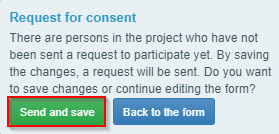
When you go ahead to  save the added record, you´ll need to approve the sending of the request by clicking
 .
Figure 30: Confirmation for sending of the participation consent
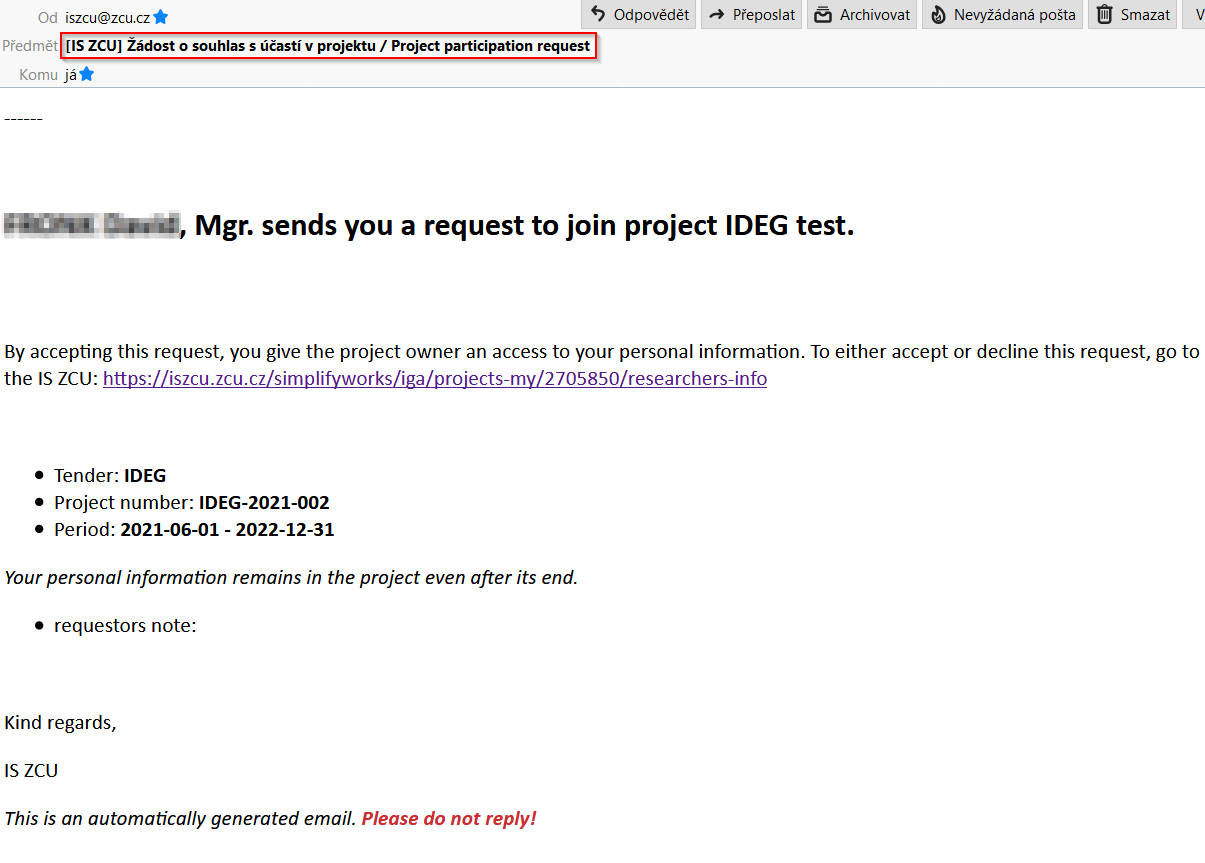
Team members that you nominated (including mentor and financial roles) will receive the following email.
Figure 31: Participation consent request – sample email
After clicking custom iszcu.zcu.cz link from the email, the co-implementor will be logged into the “Implementation team” tab of your proposal where he/she needs to click  button.
Figure 32: Implementation team – Co-implementor approving the participation

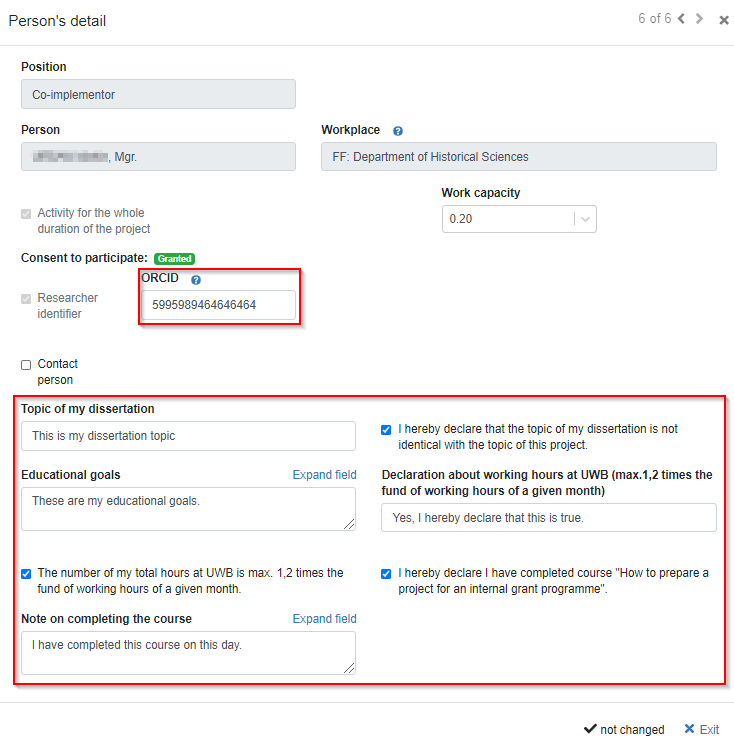
Next, the co-implementor needs to click blue “Co-implementor” link and fill out the following fields:
· ORCID
· Topic of my dissertation – type in the topic of your dissertation and check the box where you are declaring that this topic is not identical with the topic of your project.
· Declaration about total working hours at UWB – type in your declaration that your total working hours at UWB is max. 1,2 times the fund of working hours of a given month. Also make sure to check appropriate check box as a confirmation.
· Educational goal – describe your educational goals, e.g. that you would like improve your language skills.
· Declaration about course completion – it is mandatory that all members of the implementation team complete the course “How to prepare a project for an internal grant programme IDEG” before the project proposal is submitted. Put a check mark in the appropriate check box if this is true. You can also add a note in the “Note on completing the course” text box (this is not mandatory).
Figure 33: Completed „Co-implementor form“
Then the information that was put in must be confirmed by clicking  and saved by hitting
 icon in the bottom right corner of the page.
This is how it looks once the team member approves his/her participation and completes all necessary information:
Figure 34: Implementation team – Co-implementor – approved and completed record
