
Implementation team
5. External mentor
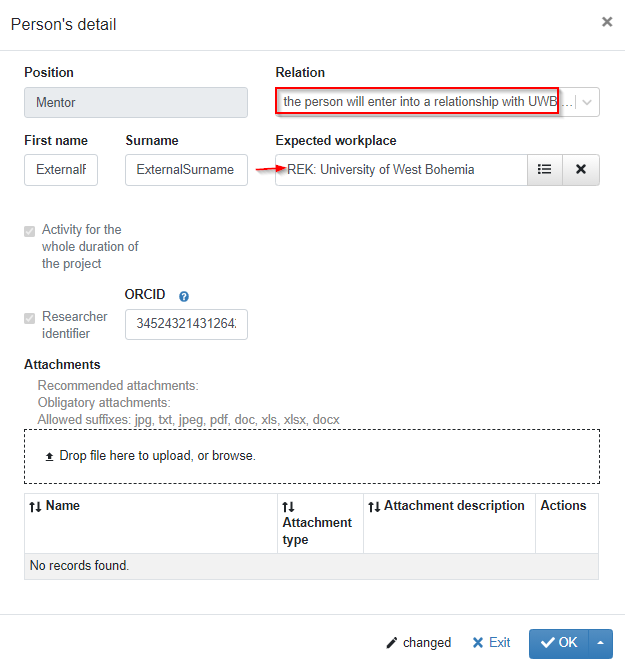
To add an external mentor, hit  tab and once the form opens up, pick “the person will enter into a relationship with UWB if the project receives funding” dropdown. Fill out the following fields:
- First name
- Surname
- Expected workplace: click workplace code list drop-down  on the right. To assign the workplace for the external mentor, type in “University of West Bohemia” in the “Organization name” search field and hit
 . Then click
 to pick this workplace.
- ORCID fields
Figure 44: Implementation team – External mentor – Expected workplace
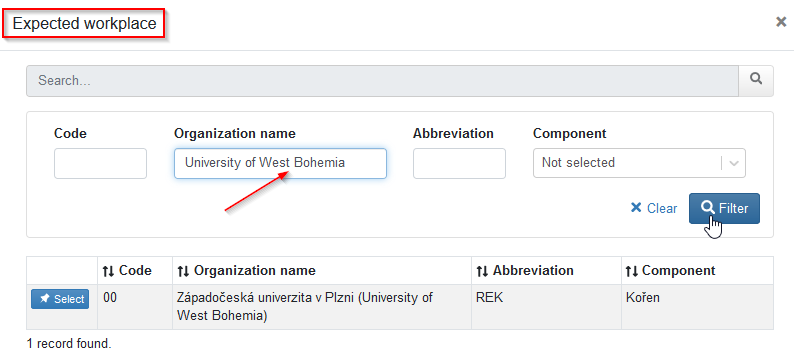
Figure 45: Implementation team – External mentor – picking „Relation“
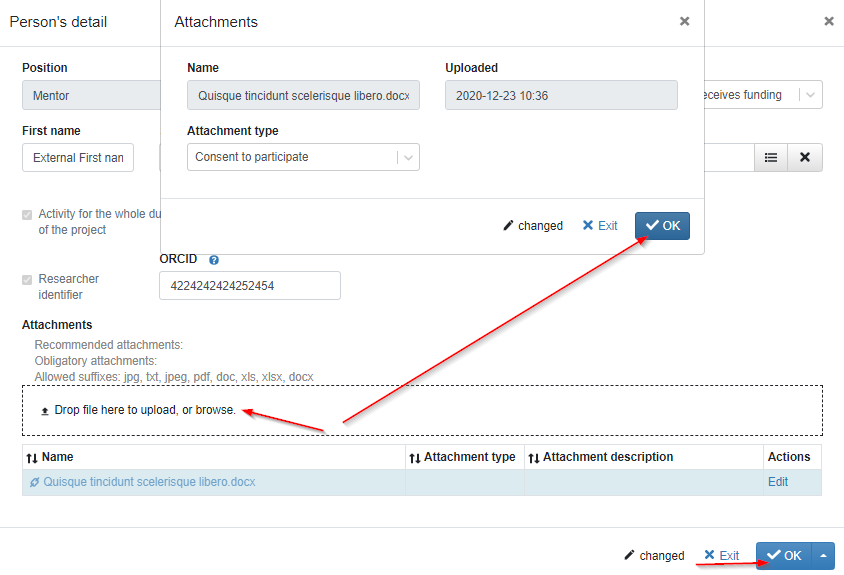
You also need to provide your external mentor´s approval for this role. As the external mentor is not being assigned from the code list at this point, you need to attach his/her signed approval with the role in the form of an attachment where he/she expresses this consent.
To do this, click “Drop file here to upload, or browse” link and locate the document on your computer. You can see that the attachment type assigned is “Consent to participate”. Click  and save everything by clicking
 icon in the bottom right corner of the page.
Figure 46: Implementation team – External mentor – attaching participation consent
This is how it looks once a record for the external mentor is completed:
Figure 47: Implementation team – External mentor –completed record
