
Implementation team
6. Financial roles
6.1. Authorizing Official
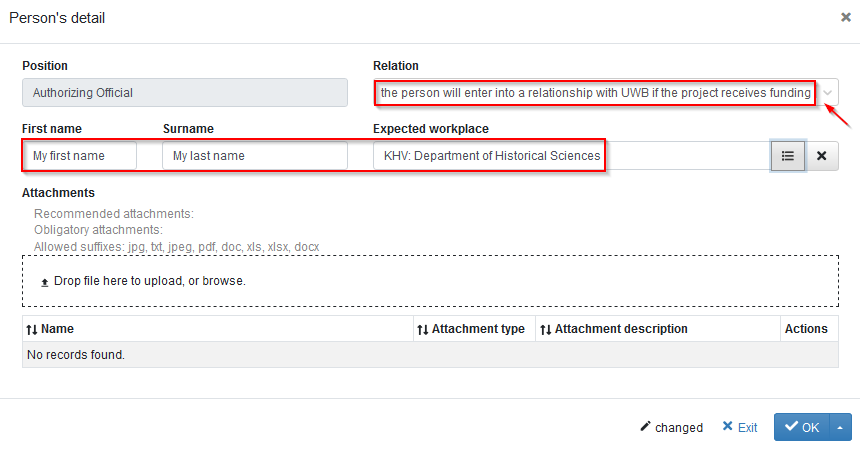
To add yourself as an Authorizing Official, click  button. As this role will enter into force once your project is approved for support and after you sign an employment agreement with UWB, you need to pick “the person will enter into a relationship with UWB if the project receives funding” option from “Relation” dropdown. Next type in your First name, Surname and pick Expected workplace from the code list drop-down.
Figure 49: Implementation team – Authorizing Official form
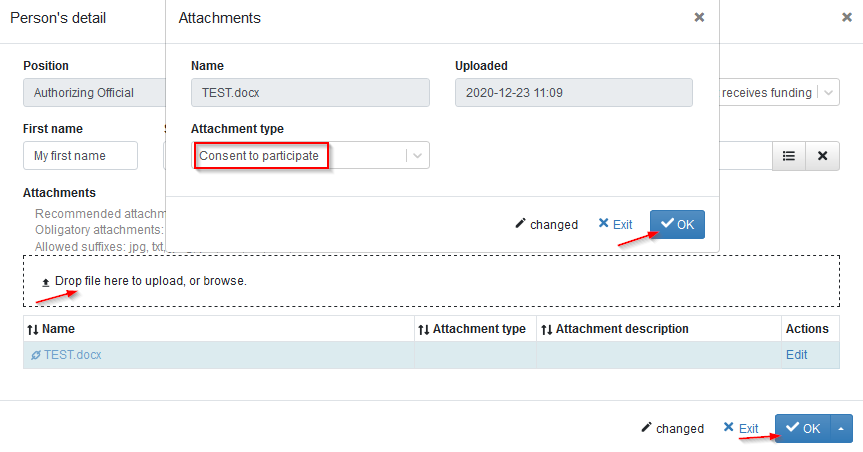
You also need to provide your approval for this role. As you are not being assigned from the code list at this point (since your project has not received funding yet and you have not signed the contract and therefore you are not in the system for these purposes), you will formally express your approval in the form of an attachment where you express this consent.
To do this, click “Drop file here to upload, or browse” link and locate your document on your computer. You can see that the attachment type assigned to your document is “Consent to participate”.
Figure 50: Providing consent for „Authorizing Official“ role
Then click twice  to confirm this action and make sure to click
 save icon in the bottom right corner to save everything.
This is how it looks once this role is approved and properly completed:
Figure 51: Implementation team – Authorizing Official –completed record
