
Implementation team
6. Financial roles
6.2. Budget Administrator
Budget Administrator, Representative of Authorizing Official, Representative of Budget Administrator: the process for addition of these roles is identical therefore it will be illustrated using Budget Administrator example only.
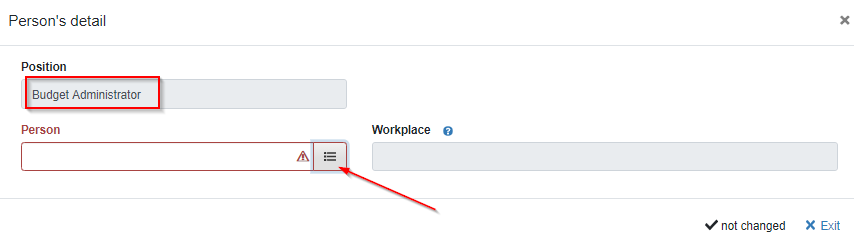
Click  icon in the “Team members” section and add a person from the person code list drop-down.
Figure 52: Implementation team – Budget Administrator form
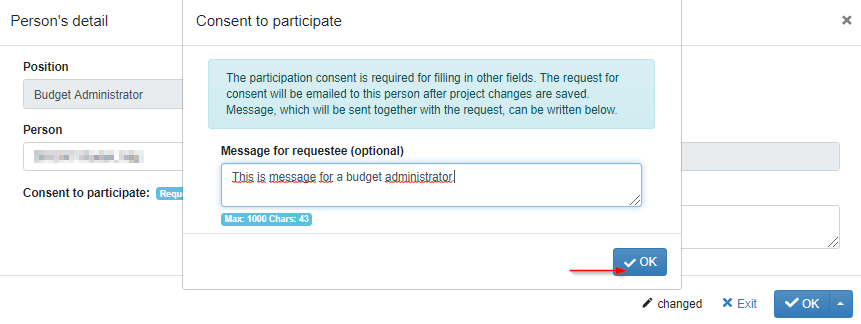
Again, you will be asked for your confirmation to send the approval request.
Figure 53: Implementation team – confirming the participation consent to be sent
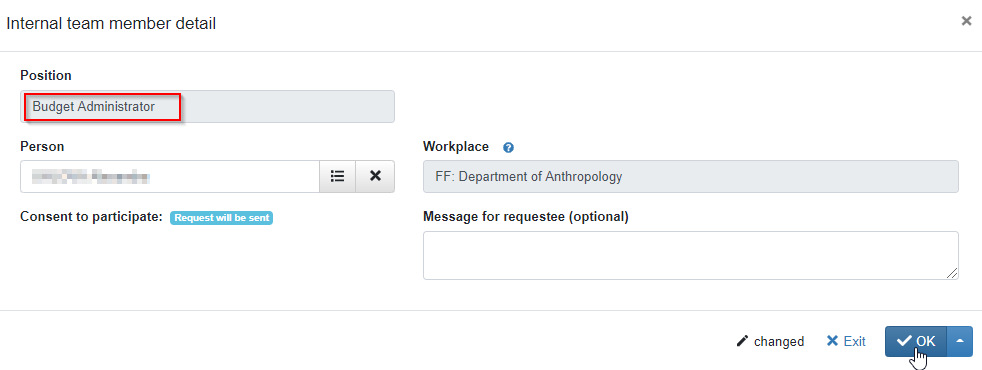
Once you confirm, person and workplace box will be populated. Next hit  to get back to “Implementation team” page and make sure to click
 save icon in the bottom right corner to save everything.
Figure 54: Implementation team – Budget Administrator form filled out
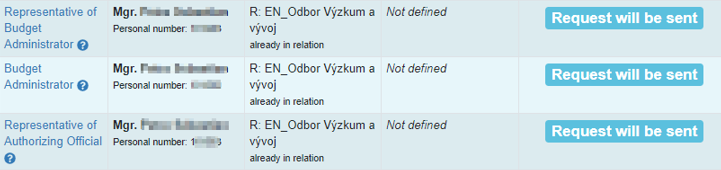
This is how it will look like once you add the financial roles:
Figure 55: Implementation team – Financial roles before sending of the participation consent
Again, once you hit  save icon in the bottom right corner, you´ll need to approve the sending of the participation request by clicking
 .
All team members in the financial roles will also need to log into your project proposal and agree with their participation as described above for the other team roles.